Your cart is empty.
Keep shopping

Teach on Udemy
Turn what you know into an opportunity and reach millions around the world.
Learn MoreThe Ultimate Bootstrap Guide - Bootstrap 5 from Scratch
Rating: 4.5 out of 54.5(3,401 ratings)
54,890 students
The Ultimate Bootstrap Guide - Bootstrap 5 from Scratch
A step-by-step course on Bootstrap 5 layouts, forms, components, and helpers with advanced features of Bootstrap 5.
Created byFatah Gabrial
Last updated 8/2025
English
What you'll learn
- Learn how to use Bootstrap 5 from scratch by following over 200 structured lessons covering every key component and layout feature step by step.
- Understand Bootstrap’s responsive grid system, breakpoints, and container behaviors to build fully mobile-friendly, flexible web layouts.
- Build a complete employee management dashboard using Bootstrap 5’s grid, cards, tables, and utility classes for real-world layout experience.
- Create a modern blog template using Bootstrap 5’s typography, spacing, and media object utilities to structure clean content-driven designs.
- Design a fully responsive multi-page professional website template with navbar, hero sections, forms, footers, and interactive elements.
- Master Bootstrap’s components like buttons, alerts, modals, carousels, accordions, badges, and navbars using hands-on project examples.
- Learn how to use Bootstrap’s JavaScript plugins to add dropdowns, collapsible menus, offcanvas navigation, and other dynamic UI behaviors.
- Work with utility-first classes for spacing, colors, alignment, shadows, borders, and responsive visibility without writing custom CSS.
- Gain confidence reading and applying the official Bootstrap 5 documentation, knowing when and how to use each class and component.
- Build professional-looking UIs faster by combining reusable Bootstrap patterns with solid layout techniques learned through real projects.
Explore related topics
Coding Exercises
This course includes our updated coding exercises so you can practice your skills as you learn.
See a demo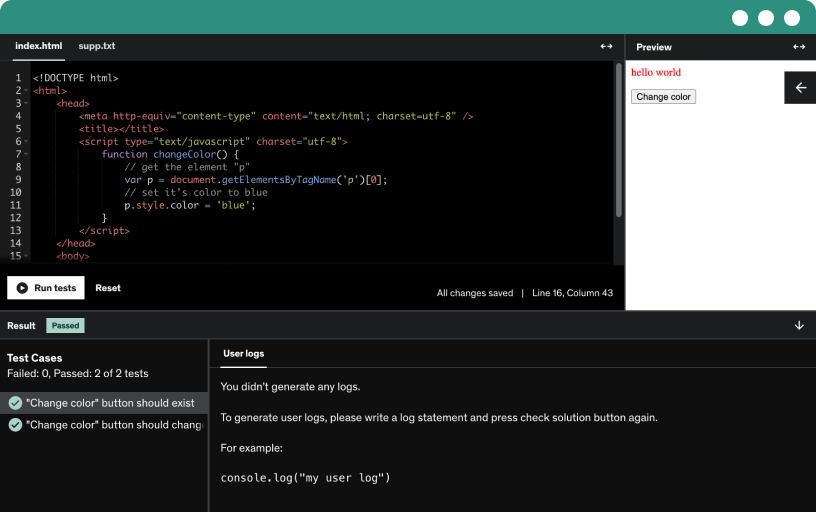
Course content
11 sections • 311 lectures • 21h 15m total length
- Introduction to Bootstrap 52:55
Discover Bootstrap 5 as a free, highly customizable CSS framework with a responsive grid, built-in components, and an SVG icon library, now jQuery-free with vanilla JavaScript for faster performance.
- What you will need2:16
Learn the basics to start with Bootstrap 5 by building a website with HTML5 and CSS3, and explore browsers and open source, free code editors.
- Hello World6:30
Create a Bootstrap 5 project folder, open it in VS Code, add index.html with Bootstrap CDN CSS and JS and Popper.js, then enable a live server for real-time updates.
- Bootstrap 5 Document Structure1:20
Structure a bootstrap document using the html5 doctype and a responsive meta viewport. Place css in the header and javascript in the footer, with clean indentation and comments for documentation.
- Section 1: Quiz
- Breakpoints in Bootstrap 54:02
Explore how breakpoints power responsive design in Bootstrap 5 using predefined media queries to apply styles. Embrace mobile first layouts that adapt from extra small to extra large screens.
- Containers2:28
Explore Bootstrap containers: container, breakpoint-specific containers for sm, md, lg, xl, and xxl, and the fluid container; see how widths switch from 100% to 720, 960, and 1140 px.
- Grid6:01
Explore bootstrap grid basics by building a container with a row of three columns, then adjust to two columns with 75% and 25% widths, and manage gutters with g- classes.
- Grid Coding Exercise
- Grid Options5:32
Explore bootstrap grid options across breakpoints, create four equal columns for all screens, then switch to three columns at the md breakpoint (768 pixels) and leverage bootstrap's mobile-first responsiveness.
- Nesting Rows and Columns3:17
Master nesting rows and columns in Bootstrap 5 from scratch by creating a row with a column, then placing a nested row inside that column to host four columns.
- Nesting Rows and Columns Coding Exercise
- Column Vertical Alignment6:22
Learn to create uniform rows and align Bootstrap 5 columns vertically using align-items-start, align-items-center, and align-items-end, then fine-tune individual columns with align-self-start, align-self-center, and align-self-end.
- Align Items Center Coding Exercise
- Column Horizontal Alignment5:30
Learn how to horizontally align Bootstrap 5 columns in a row using justify content start, center, end, around, between, and evenly, with practical coding examples.
- Column Horizonal Alignment Exercise
- Column Wrapping and Column Breaks3:27
Explore Bootstrap 5 column wrapping and column breaks, using a 13-column example with col-9 and col-4, then learn to force new rows with the w-100 utility and separate rows.
- Column Break Coding Exercise
- Reordering and Offsetting Columns5:38
Master reordering and offsetting columns in Bootstrap 5 from scratch by using order and offset classes to control visual order, alignment, and spacing of multi-column rows.
- Column Ordering Coding Exercise
- Move a column with Offset method Coding Exercise
- Margin Utilities6:34
Discover how to use bootstrap 5 margin utilities to control left and right spacing, auto margins for alignment, and standalone classes for floating images, with examples of containers, rows, and columns.
- Margin Utilities Coding Exercise
- Gutters0:49
Explore the Bootstrap grid system with columns and horizontal and vertical gutters, and learn how the offset method moves columns with a negative margin using 24-pixel gutters and breakpoint classes.
- Horizontal Gutters5:17
Explore horizontal gutters in Bootstrap 5 by applying the G class to rows and preventing overflow with container padding (px) or overflow-hidden, using gx-5 and color utilities.
- Vertical Gutters2:06
Learn to implement vertical gutters in Bootstrap 5, adjust vertical spacing with gy- values, switch to a four-column layout, and apply overflow hidden to prevent overflow.
- Horizontal and Vertical Gutters2:47
apply both horizontal and vertical gutters using a single class name G on a bootstrap row, and adjust spacing with breakpoint-specific versions for md and sm.
- Section 2: Quiz
- Typography4:42
Learn how Bootstrap typography styles headings and paragraphs without writing CSS, using display headings, text-muted, and lead classes to create distinct typographic hierarchy across a web page.
- Inline Text Elements5:46
Explore Bootstrap's inline text elements and default styles, compare semantic tags with Bootstrap classes, and apply text utilities such as mark, del, strike, ins, u, small, strong, and em.
- Abbreviations and Blockquotes5:03
Learn how bootstrap styles abbreviations with the initialism class, comparing plain HTML to the bootstrap look, and style block code using the block code tag with fig and fig caption.
- Working with Lists5:40
Master Bootstrap 5 list styling, including unordered, inline, and unstyled lists. Arrange description lists with the grid system using container, row, and col, and apply text truncation for ellipsis.
- Images in Bootstrap6:20
Master Bootstrap image handling by making images responsive with the img-fluid class, styling with img-thumbnail and rounded, and aligning with float-start, float-end, mx-auto and d-block.
- Tables in Bootstrap15:36
Explore how to create and style tables in Bootstrap 5, applying table variants, striped and hover effects, borders and border colors, and structured tables with header, body, and footer.
- Table Alignment, Nesting and Anatomy6:16
Master table alignment and nesting in Bootstrap 5 from scratch. Align content vertically with aligned-middle, aligned-top, or aligned-bottom, and explore table anatomy: header, body, footer, and nested tables.
- Figures in Bootstrap3:06
Build a Bootstrap figure component using figure, figure-img, and figure-caption to display an image with a caption, and explore text-center, text-start, and text-end alignment.
- Section 3: Quiz
- Forms in Bootstrap5:58
Explore how Bootstrap styles form elements from inputs to checkboxes, uses input groups and floating labels, and builds a login form with default or custom validation and Bootstrap components.
- Form Control13:38
Learn to implement form controls with Bootstrap 5, including text inputs, textareas, labels, sizing, and disabled fields, plus file, color, data list, and single or multi select options.
- Checks and Radios11:38
Explore how Bootstrap 5 redesigns checks and radios to implement form check usage with default and checked checkboxes, indeterminate state via JavaScript, switches, and horizontal or inline layouts.
- Range3:33
Learn to customize Bootstrap 5 range elements with Bootstrap classes, control min, max, and step values, and explore disabled states across browsers.
- Input Groups23:14
Explore bootstrap 5 input groups to combine text, buttons, and form controls into cohesive inputs, and learn sizing, alignment, add-ons, checkboxes, radios, dropdowns, and custom form examples.
- Floating Labels5:07
Shows how to implement bootstrap 5 floating labels in a form, including username and password fields with validation, and a country select with the label staying on top.
- Form Layout10:11
Learn Bootstrap 5 form layouts with the grid system to build a vertical signup form with first name, last name, email, password, address, city, state, zip, a checkbox, and submit.
- Horizontal Forms6:06
Learn to build horizontal forms in Bootstrap 5 using the grid system, creating a signup form with email, username, and password fields styled by form-label and form-control.
- Auto Sizing Forms7:28
Learn to build responsive, auto-sized Bootstrap 5 forms with flexbox utilities, input groups, selects, and checkboxes to create clean, practical UI layouts.
- Inline Forms7:10
Create inline forms with a horizontal layout using Bootstrap 5, centering the username field, select, and remember me checkbox. The form adapts from horizontal on desktop to single-column on mobile.
- Form Validation8:50
Explore bootstrap form validation with a simple username and password form, using is-invalid and is-valid to show errors and successes, while preventing page reload.
- Section 4: Quiz
- Accordions10:04
Build Bootstrap 5 accordions from scratch using a television series example with seasons and episodes. Configure headers, collapse bodies, and flush styling for clean borders.
- Alerts6:28
Create and customize bootstrap alerts to display user feedback, using alert variants, links, and rich content such as headings and paragraphs, with svg icons and spacing options.
- Dismissing Alerts2:32
Learn to create a dismissible Bootstrap 5 alert without JavaScript by using the alert, fade, and show classes, and add a close button with bootstrap attributes to hide on click.
- Badges11:37
Learn Bootstrap 5 badges: apply color variants and inherit sizes from headings or paragraphs, then position them with relative or absolute utilities for use with buttons or links.
- Breadcrumb6:45
Explore breadcrumbs in Bootstrap 5, including automatic separators, aria-labeled navigation, active items, and styling via CSS variables for ordered and unordered lists.
- Buttons20:54
Explore Bootstrap 5 buttons, including primary, secondary, outline, and toggle variants, and learn to style, apply disabled states, and vary sizes across elements with CSS variables.
- Button Group8:14
Master button groups in Bootstrap 5 with roles and aria labels, align left, center, and right buttons, and group checkboxes and radio buttons with active and outline styles.
- Button Toolbar4:59
Learn to build a button toolbar by grouping button groups with spacing, assigning the toolbar role and label, and incorporating input groups with justify content between.
- Button Group Alteration6:06
Explore Bootstrap 5 button groups from scratch, resizing them to large and small sizes, nesting dropdowns, and aligning groups vertically to build versatile navigation interfaces.
- Card12:39
Learn to build bootstrap cards with header, body, and footer, including images, titles, text, and links. Create versatile, responsive layouts with variants, lists, headers, and block code.
- Card Sizing3:05
Size Bootstrap cards with default 100% width, apply sizing utilities like w-75 or w-50, arrange multiple cards in a grid, and use text alignment utilities to control card content.
- Card Navigation3:44
Explore card navigation in bootstrap by adding tabbed and pill navigation inside a card header, using nav, nav-tabs, nav-pills, and nav-link classes with active and disabled states.
- Card Images7:38
Explore how to design flexible card layouts with images in Bootstrap 5, including top and bottom image placements, background image cards, and grid-based alignment.
- Card Styles8:48
Explore bootstrap card styles by applying variant colors, borders, and text options; build groups and responsive grids with row and md breakpoints for flexible layouts.
- Carousel3:41
Discover how to build a Bootstrap 5 carousel to cycle images and text, using slides, an active item, data attributes, and responsive alignment for a functional slider.
- Carousel Controls3:20
Learn to add Bootstrap 5 carousel controls by implementing previous and next buttons with carousel-control-prev and carousel-control-next, using data-bs-target and data-bs-slide attributes, plus accessible icons.
- Carousel Indicators3:01
Learn to add Bootstrap carousel indicators by creating three buttons linked to the carousel ID, marking the first as active and assigning slide-to values with labels.
- Carousel Caption3:46
Learn how to add captions to Bootstrap 5 carousel slides using the carousel-caption class, and control visibility across devices with d-none and d-md-block utilities.
- Carousel Fade Effect2:12
Explore how to add the fade effect to a Bootstrap carousel by applying the carousel fade class, replacing images for visible transitions, and testing in the browser.
- Carousel Timing2:09
Learn to control bootstrap carousel timing with per-slide interval settings, switching from a fade to a slide effect and setting per-slide durations from 0.5s to 2s.
- Disable Carousel Touch Swiping1:13
Bootstrap carousel supports touch swiping by default on mobile; disable it with data-bs-touch and set data-bs-interval to false to create a manual, non-automatic slider.
- Carousel Dark Variant0:49
Discover how to enable dark captions in Bootstrap carousels by applying a dark variant class to slides, making captions readable on white-background images.
- (Bootstrap 5.3 Update) Deprecation of Carousel Dark & The New Method3:05
Explore how Bootstrap 5.3 deprecates the carousel dark class and uses a data-theme attribute on the parent to apply dark or light mode, updating CSS and JavaScript accordingly.
- Close Button2:52
Learn to create Bootstrap close buttons for modals and alerts, including light and dark variants, using the button element, type button, and close class; and disable with the disabled attribute.
- (Bootstrap 5.3 Update) Deprecation of "btn-close-white" & The New Method2:04
In this lecture, learn how Bootstrap 5.3 deprecates btn-close-white and uses data-bs-theme='dark' to style the close button, update CSS and JS, and implement the new method.
- Collapse4:19
Learn how to use Bootstrap's collapse feature to toggle content visibility with buttons and anchors, wiring data-toggle, data-target, and collapse IDs to reveal or hide sections.
- Horizontal Collapse2:47
Learn to implement horizontal collapse in Bootstrap 5 from scratch, using a link button to toggle a collapsed area with a card body, min-height 120px, and accessible controls.
- Multiple Targets4:34
Demonstrate how Bootstrap collapse hides multiple elements with separate buttons, and how a single button collapses multiple elements by sharing a multi collapse target and unique ids.
- Dropdowns4:54
Explore Bootstrap 5 dropdowns from scratch by building a button-driven dropdown with btn btn-secondary and dropdown-toggle, then switch to an anchor-based version.
- Split Button3:14
Create a Bootstrap 5 split button by pairing a danger action button with a dropdown toggle. Show button group with a dropdown menu and items, plus a visually hidden label.
- Dropdown Sizing2:19
Resize Bootstrap dropdowns by applying size classes to regular and split buttons, creating larger and smaller variants through copy-paste and spacing adjustments.
- Dark Dropdowns1:20
Apply a dark theme to dropdowns by adding a dark class to the dropdown button and the dropdown menu, enabling a dark navigation bar and a dark template.
- (Bootstrap 5.3 Update) Deprecation of Dark Dropdowns & The New Method1:59
Bootstrap 5.3 deprecates the dark dropdown menu class and uses data-bs-theme='dark' to enable dark dropdowns; update CSS and JS to 5.3 and apply the theme to the dropdown's parent.
- Dropdown Directions6:09
Learn to center and top-align bootstrap dropdowns, implement drop up variations, and build a split button dropdown with a labeled dropdown menu, using btn and data-bs-toggle attributes.
- Dropup and Dropdown Alignment7:22
Explore aligning Bootstrap 5 dropdowns and dropups to left, center, and right using drop up center, drop start, and button group techniques, including dropdown menus and split buttons.
- Menu Items6:25
Learn to build Bootstrap 5 dropdowns with button items, including an active state with aria current and disabled items, and non interactive text items.
- Menu Alignment4:40
Learn how to align Bootstrap 5 dropdown menus right or left, control positioning with data-bs-display static, and apply responsive breakpoint variations to switch alignment.
- Dropdown Alignment Options6:43
explore bootstrap 5 dropdown alignment options, from default left to right, left with carrot, drop start and drop up, with responsive lg breakpoint behavior.
- Menu Contents3:36
Add a header, dividers, and text to a bootstrap dropdown with dropdown header, dropdown divider, and text muted, using p-4, then set width to 400 pixels and apply m-0.
- Dropdown Forms4:01
Learn to build a signup form inside a Bootstrap dropdown that opens without redirecting, featuring a 400px width, email and password fields, remember me, and a submit button.
- Dropdown Options4:03
Learn to position dropdowns in Bootstrap 5 using offset values, the data-offset attribute, and align a split button by adjusting negative and positive offsets for precise edge alignment.
- Dropdown Auto Close2:42
Explore bootstrap 5 dropdown auto close behaviors and how the data attribute controls closing. Learn default, inside, outside, and false values to manage when a dropdown closes.
- List Group2:24
Create flexible Bootstrap 5 list groups by applying list-group and list-group-item to ul elements, then showcase active and disabled states and size variations with practical code examples.
- List Group Links and Buttons3:31
Explore creating clickable list group items by using anchor tags and buttons, applying the List Group Item Action class to enable hover effects, active state, and accessibility through aria-current.
- List Group Flush0:51
Discover how to implement bootstrap 5 list groups and use the flush option to remove borders, with live previews and card integrations.
- Numbered List2:36
Explore building numbered lists with Bootstrap 5 using list group numbers, including content-based items with headings and paragraphs. Learn to apply flex, justify-content-between, and margins to align items.
- Horizontal List Groups3:05
Learn how to create horizontal list groups with bootstrap 5 using list-group-horizontal, flex-fill to evenly distribute items, and responsive behavior across breakpoints.
- Contextual List Group Classes3:11
Explore contextual list group classes in bootstrap 5, applying primary, secondary, success, danger, warning, info, and dark variants. Make items clickable with list-group-item-action using anchor tags.
- List Group with Badges2:08
Apply badges to a Bootstrap list group by building list items with a badge span, using justify content between and align items center for a primary rounded pill notification.
- List Group with Custom Content2:58
Organize list group content with anchor items, mark one as active and indicate its current state, and display headings, dates, content, and category in a flex layout.
- List Group Checkboxes and Radios2:46
Learn to place checkboxes and radio buttons inside a Bootstrap list group using ul, list group item, form check input, and optional label tags.
- List Group JavaScript Tabs9:17
Build a JavaScript-based tabbed panel in bootstrap 5 using inbuilt data attributes, with four list-group tabs (home, profile, messages, settings) and corresponding tab content panels that fade in.
- Modals6:08
Explore bootstrap modals, a built-in javascript plugin for dialogs and notifications. Build a first modal with a trigger button, header, body, and footer, including close and save actions.
- Static Backdrop2:02
Configure a static backdrop for the Bootstrap modal by setting data-backdrop to static and disabling keyboard input, so clicking outside no longer closes the modal.
- Scrolling Long Content1:53
Explore how to create a scrollable Bootstrap 5 modal using modal-dialog-scrollable, with a long lorem ipsum paragraph, so the close button stays accessible.
- Vertically Centered0:46
Learn how to vertically center a Bootstrap modal by applying the modal dialog center class to align the modal at the center of the page.
- Modal Tooltips and Popovers6:37
Explore how to enable and implement modal tooltips and popovers in Bootstrap 5, using data-bs-toggle and related attributes, with examples of modals and automatic dismissal.
- Using Grid System In Modal1:28
Explore how to use the bootstrap grid system inside a modal by wrapping content in a container-fluid, creating rows and columns, and displaying an alert within the modal.
- Varying Modal Content9:47
Demonstrates using a single Bootstrap modal and form to serve multiple users by binding each button to a shared modal via ids, inserting the selected user's name into the form.
- Toggle Between Modals6:50
Learn to toggle between two Bootstrap modals with a single button, using data attributes to target each modal and switch between first and second modals.
- Optional Modal Sizes3:06
Experiment with optional modal sizes by applying classes like model S or model G, then create fullscreen modals with bootstrap using the model full screen class on the model dialog.
- Navbar4:05
Create a Bootstrap 5 navbar with branding and navigation, including a mobile-friendly collapsed menu, using text or image brand, container styling, and responsive layout.
- (Bootstrap 5.3 Update) The All New "bg-body-tertiary"2:28
Learn how Bootstrap 5.3 introduces the bg-body-tertiary class to replace bg light for navbar backgrounds, with updates to CSS, JavaScript, and assets.
- Navigation Links6:05
Create a responsive navigation bar with links, brand, and collapse behavior for mobile, using navbar-expand-lg, a toggle button, and active, disabled, and standard nav items.
- Navbar Dropdown3:17
Add a dropdown to a list-based navbar by applying the dropdown and dropdown toggle classes, using data-bs-toggle, aria-expanded, and data-bs-auto-close outside to keep it open.
- Navbar Nested Dropdown5:22
Learn to build a nested dropdown in Bootstrap 5 by extending a navigation bar with a second-level dropdown, using dropdown, dropdown-toggle, dropdown-menu, and responsive behavior.
- Navbar Forms1:54
Build a navbar with a flex layout and a built-in search form, featuring a search input with placeholder and aria label, plus a btn btn-outline-success submit button.
- Navbar Input Group0:57
Create an input group inside the navigation bar by combining an input field with a button in a form, then save and run in the browser to see the result.
- Navbar Plain Text1:03
Display plain text in a Bootstrap 5 navbar by using a span with the nav bar text class beside the brand and an input group for even distribution.
- Navbar Colors2:01
Explore navbar color schemes in bootstrap 5 from scratch by applying bg primary and experimenting with success and warning variants, using neighbor dark to keep text readable.
- (Bootstrap 5.3 Update) The Navbar Dark-Mode1:54
Implement a fully dark Bootstrap 5.3 navbar, including dropdowns, by updating to Bootstrap 5.3, removing unused scripts, and setting data-bs-theme to dark.
- (Bootstrap 5.3 Update) The New Navbar Color3:29
Update your Bootstrap 5.3 project by upgrading CSS and JS, applying the new navbar color classes, and enabling dark mode for the nav bar and search bar.
- Navbar Containers4:00
Explore how Bootstrap containers resize at breakpoints, comparing container, container-md, and container-fluid. See that container-fluid stays full width while other containers adjust with the viewport, affecting the layout on mobile.
- Navbar Placement5:02
Explore how to position the navigation bar in Bootstrap 5 using default, fixed top, fixed bottom, sticky top, and sticky bottom, and see how each behaves with scrolling and content.
- Navbar Scrolling2:15
Learn to implement a scrollable navigation bar in Bootstrap 5 by setting a fixed height, applying the nav bar class, and enabling internal scrolling for mobile layouts.
- Off Canvas Navbar10:57
Build a responsive off-canvas navbar with a collapsible sidebar using Bootstrap 5, featuring a toggle button, header, and a body with nav items, a dropdown, and a search bar.
- Navs and Tabs10:10
Explore Bootstrap 5 navs and tabs, create nav components inside a card header, implement active, disabled, and different styles like pills, fills, and justified tabs, with horizontal and vertical arrangements.
- Nav Flex Utilities2:09
Discover how to switch a horizontal Bootstrap navigation to a vertical column on small screens using flex utilities, including flex-column and text-center for centered links.
- Nav Tabs and Pills with Dropdown4:15
Learn to add dropdowns to Bootstrap 5 nav tabs and pills, build a tabbed navigation with dropdown menus, and verify the results in the browser.
- Tabs and Pills Behaviors12:10
Learn to add JavaScript behaviors to Bootstrap tabs and pills, configure active states, tab panes, and fade effects, and build horizontal and vertical tab layouts.
- Offcanvas In-Depth6:58
Demonstrates the Bootstrap 5 off canvas component, toggleable with JavaScript, alignable to any edge, and triggerable via button or anchor tag. Includes a left-aligned example with header, body, and navigation.
- (Bootstrap 5.3 Update) Offcanvas Dark-Mode1:58
Upgrade the off canvas component to Bootstrap 5.3 and enable dark mode by replacing the css and js files and setting data-bs-theme to dark.
- Offcanvas Scrolling2:35
Learn how offcanvas scrolling works with data-bs-scroll, control the backdrop with data-bs-backdrop, and use static backdrop to prevent closing while the background remains scrollable.
- Offcanvas Placement2:33
Learn how to place the off canvas anywhere in the viewport using start, top, right, and bottom classes, and adjust nav pills and flex columns for proper alignment.
- Pagination6:15
Master bootstrap pagination by building page navigation with previous and next controls, active and disabled states, and adjustable sizes and alignments using page items and links.
- Placeholders8:44
Learn to implement loading placeholders in Bootstrap 5 using cards, images, and placeholder content with glow and wave effects, including size and color variations.
- Popovers In-Depth5:46
Enable bootstrap popovers by including the proper minx or the bootstrap bundle with popper. Use a reusable enable-tags script to activate popovers across the document.
- Popover Direction1:37
Explore how to implement a bootstrap 5 popover in four directions—left, top, right, and bottom—by configuring the placement attribute and previewing each direction in the browser.
- Custom Popovers3:02
Define custom properties with css variables and apply bootstrap css variables to build a custom popover with configurable border color, header background, header color, and body padding.
- Dismiss on Next Click1:09
Learn how to implement dismiss behavior for Bootstrap 5 popovers by clicking outside, using data-bs-trigger focus, and handling outside clicks to close the popover on the next click.
- Enable Popover On Hover0:48
Enable a popover on hover by adding a hover trigger attribute to the existing focus setup, so the popover appears when the cursor hovers and disappears on exit.
- Progress Bars3:30
Explore bootstrap 5 progress bars, customize the built-in component, set values and labels, apply custom styles, and display percentage indicators.
- Progress Bar Height and Background1:48
Learn to customize a bootstrap progress bar by adjusting height from 1px to 20px and applying background colors with the big success class and dark or light variants.
- Stripes And Animation1:10
Add stripes to a progress bar by changing its background and applying the striped and animated classes, creating a static and an animated version.
- (Bootstrap 5.3 Update) The New Progress Bar5:19
Explore the Bootstrap 5.3 progress bar with its new HTML structure, aria attributes, and width-driven states from 0 to 100, plus compatibility with Bootstrap 5.3 until v6.
- (Bootstrap 5.3 Update) Progress Bar Height1:31
Learn how to adjust the Bootstrap 5.3 progress bar height by applying height styles to the parent element, testing 2px through 10px to see the effect.
- (Bootstrap 5.3 Update) Labels and Backgrounds in Progress Bars3:43
Add labels inside Bootstrap 5.3 progress bars, using 0%, 25%, 50%, 75%, and 100% to display progress. Show different backgrounds and adjust text colors to keep the labels readable.
- (Bootstrap 5.3 Update) Multiple Stacked Progress Bars4:44
Learn to build stacked progress bars with Bootstrap 5.3, configuring multiple segments, widths, and colors using the progress stacked class for dynamic UI indicators.
- (Bootstrap 5.3 Update) Stripped and Animated Progress Bars2:40
Learn to create striped and animated progress bars using bootstrap 5.3, by editing index.html, applying background colors, and enabling striped and animated progress bar styles.
- Scrollspy11:16
Explore how to implement Bootstrap scrollspy to automatically highlight the active section as you scroll a content area, using data-bs-spy, smooth scrolling, and interactive nav links.
- Spinners1:37
Learn to indicate loading states with Bootstrap spinners built-in HTML and CSS, using Bootstrap's spinner-border with role as status and colors text primary, danger, and success.
- Growing Spinner1:03
Learn to create a growing spinner in Bootstrap 5 by replacing borders with the grow class, and apply colors using text-primary, text-success, and text-danger.
- Spinner Alignment4:40
Learn to align Bootstrap 5 spinners with inline flex, margins, borders, and padding, using center, left, and right placements and loading state cues for accessible feedback.
- Spinner Sizes1:54
Learn to apply spinner sizes in Bootstrap 5 from scratch, creating border spinners and a large 150 by 150 pixel variant, customizing with width, height, and a grow animation.
- Spinner In Buttons2:54
Explore how to implement a loading spinner inside Bootstrap 5 buttons, including disabled states, accessible labels, and alternative spinner styles for dynamic feedback.
- Toasts16:53
Create Bootstrap 5 toasts from scratch, including a live toast triggered by a button, a fixed toast container at the bottom end, header with logo, and a dismissible body message.
- Toast Alignment2:46
Learn to align toasts in Bootstrap 5 by placing them in the four corners—top left, top right, bottom right, bottom left—using top, left, right, and bottom zero values with mt-3.
- Tooltips In-Depth3:40
Learn to enable Bootstrap tooltips with Power for Positioning, initialize tooltips on trigger elements, and streamline the setup with the Enable Tags file for Bootstrap tooltip initialization.
- Custom Tooltip2:32
Create custom tooltips in bootstrap 5 by defining css variables and a primary tooltip style, then reuse with data-bs-custom-class to produce primary, success, and danger tooltips.
- Tooltip Directions1:49
Explore how to add and position tooltip directions in Bootstrap 5 by setting placements such as top, right, bottom, and left on a button.
- Html in Tooltip1:41
Enable html content inside a bootstrap tooltip on a button, and practice adding tags like em, underline, and bold to format the tooltip.
- Tooltip On Disabled Elements1:45
Learn how to apply Bootstrap 5 tooltips to disabled inputs using tabindex, data-bs-toggle, and title to display messages like you cannot change the email ID while keeping the field disabled.
- Section 5: Quiz
- Clearfix1:41
Learn how clearfix clears floated elements inside a container to reveal the primary background color behind two floated buttons.
- Colors and Background3:41
Explore Bootstrap 5 color variants for text and backgrounds, see automatic text color adjustments for contrast, and apply colored badges and cards with a header and card body.
- Colored Links1:17
Color links with Bootstrap 5 from scratch, using classes like primary, secondary, success, and danger, and observe hover effects that subtly change link colors.
- (Bootstrap 5.3 Update) Link Utilities5:43
Explore Bootstrap 5.3 link utilities to style anchor tags with color, opacity, and underline offset, including practical examples of primary, success, and warning links and hover effects.
- (Bootstrap 5.3 Update) Focus Rings5:06
Explore Bootstrap 5.3 focus rings, a utility that replaces focus outlines with customizable box shadows, using CSS variables for color, opacity, offset, and blur in real examples.
- (Bootstrap 5.3 Update) Icon Links4:38
Explore Bootstrap 5.3 icon link to add icons inside links, customize with icon link hover, and use Bootstrap icons or any icon set with css variables for hover effects.
- Ratios2:42
Explore how Bootstrap aspect ratio utilities fix video embeds, create standard and custom aspect ratios (1:1, 4:3, 16:9, 21:9), and make iframes resize responsively.
- Positions4:18
Explore how to position elements in Bootstrap 5 using fixed and sticky options, including top and bottom placements and responsive breakpoints like sticky sm bottom.
- Stacks7:23
Explore how stacks built on flex boxes enable layouts with components, head stacks for vertical centering, and spacing via gap utilities to create clean, form-ready interfaces.
- Visually Hidden0:46
Apply Bootstrap's visually hidden class to hide any element, such as heads, tags, paragraphs, colored elements, buttons, or input fields, while preserving screen reader access.
- Stretched Link2:39
Master stretched links in Bootstrap 5 to turn a card into a clickable area, applying the technique to multiple cards and observing how the entire card becomes clickable.
- Text Truncate2:19
Master Bootstrap text truncation using the text-truncate class to add ellipses for long content, with block and inline examples and width constraints.
- Vertical Rule2:13
Learn how to add vertical rules in Bootstrap 5 using the vr class, customize height with flex and a 200-pixel setting, and place vertical separators inside stacks to delineate items.
- Section 6: Quiz
- Backgrounds1:48
Explore applying bootstrap background classes such as bg-primary, bg-secondary, bg-success, bg-info, bg-light, and bg-transparent, and manually set text color for contrast, with padding and margins shown.
- (Bootstrap 5.3 Update) Additional Background Colors3:42
Learn how to add Bootstrap 5.3 background color options, including subtle variants like bg primary, bg success, bg warning, and bg dark, in a simple HTML layout.
- Background Gradients0:59
Learn to apply a background gradient using the BG Gradient class, creating a linear, semi-transparent white fade to the bottom and previewing the result in the browser.
- Background Opacity2:22
Apply background opacity with the bg opacity class in bootstrap 5, then test 75, 50, 25, and 10 percent. Use CSS variables to set a custom 0.5 opacity.
- Borders3:53
Learn to apply borders and border radius in Bootstrap 5, using four methods to add, remove, or customize borders and create aligned dot box designs.
- Border Color3:06
Demonstrates adding bootstrap border colors to a box, an input field, and an alert using variants like border primary, secondary, success, warning, danger, dark, and light.
- Border Opacity1:56
demonstrate adding a dot border with border opacity, using padding and margin utilities, and adjusting values from 75 to 10 or a CSS variable for a custom opacity.
- Border Width1:10
Apply bootstrap border widths from 1 to 5 using border-1 through border-5, along with padding (p-2) and bottom margin utilities, then preview in the browser.
- Border Radius1:49
Apply bootstrap border radius using the rounded class and side-specific variants such as top, bottom, start, and end. Preview the results with bg colors and margins to see rounded borders.
- Rounded Border Sizes2:15
Experiment with Bootstrap 5 border radius by creating a top box, duplicating styles, and applying rounded, circle, and pill options from zero to five, then preview in the browser.
- Text Colors1:34
Learn how to apply bootstrap text color classes to change text color in alerts, using variants like text primary, text secondary, text success, and text danger.
- Text Opacity1:39
Apply text opacity in Bootstrap 5 by using text opacity values from 75 to 10, naming text primary and default text, and defining a custom opacity with CSS variables.
- Display Inline and Block2:44
Demonstrates how Bootstrap 5 display utilities convert between block and inline elements using classes like d-inline and d-block, with padding, bg primary, and text styling.
- Hiding Elements3:31
Practice hiding and showing bootstrap elements using d-none and d-block classes, and tailor visibility with breakpoint-specific classes like d-sm-none and d-md-none across breakpoints.
- Display In Print2:30
Explore how Bootstrap 5 enables print media styles by creating screen-only and print-only elements, using visibility classes to toggle content between screen and print views.
- Flex2:03
Learn to use flex in Bootstrap 5 from scratch to control layout alignment and sizing of grid columns and navigation, enabling flexbox with d-flex, inline flex, and responsive breakpoints.
- Flex Direction5:41
Explore flex direction in bootstrap 5 by building flex row, reverse, and column layouts, applying margins, padding, and responsive breakpoints to switch between columns and rows.
- Flex Justify Content2:37
Explore flex justify content in a Bootstrap 5 environment with live examples. Learn how default, start, end, center, between, around, and evenly distribute flex items inside a flex container.
- Flex Align Items3:44
Learn to align flex items in Bootstrap 5 using line item utilities, applying start, end, center, baseline, and stretch across custom heights and responsive breakpoints (md, sm).
- Flex Align Self3:58
Learn align-self in bootstrap to position flex items on the cross axis using start, center, baseline, stretch, and end, with responsive variants for md, sm, and excess breakpoints.
- Flex Fill2:39
Apply the flex fill class to let a lengthy item adapt its width to the container in a flexbox, with responsive flex md fill and flex sm fill options.
- Flex Grow And Shrink3:26
Explore flex grow and flex shrink in Bootstrap 5, using responsive breakpoints to control which items stretch or shrink across md and sm layouts.
- Flex Auto Margins1:17
Learn to control flex box items using auto margins to align and distribute space, applying right or left auto margins on items to push others apart.
- Flex With Align Items1:53
Demonstrates using align-items with a column flex layout to vertically position items, and applies margin utilities like mb-auto and mt-auto to push items toward start or end.
- Flex Wrap2:18
Explore how flex items wrap by default or with no wrap, then implement flex wrap and flex reverse to control line breaks and item alignment across lines.
- Flex Order3:44
Master Bootstrap 5 flex item ordering with the order utility from 0 to 5, including responsive breakpoints and the order first and order last.
- Flex Align Content3:57
Discover how to use Bootstrap 5's flexbox align-content utility to align items across the axis, with examples of start, end, center, between, around, and responsive breakpoints.
- Flex Media Object3:36
Explore the Bootstrap 5 flex media object, using flex shrink to zero and flex grow to one for a vertical image of width 250px and align items center or bottom.
- Responsive Float2:35
Learn to align elements across breakpoints using bootstrap floats, including float start, float end, and float none, and preview responsive behavior with real examples.
- Interactions4:49
Learn to control user selection and clicking with interaction classes, using text blocks set to all, auto, or none, and pointer events to enable or disable links.
- (Bootstrap 5.3 Update) Link Opacity3:46
Explore the Bootstrap 5.3 update by implementing the link opacity utility, creating a demo with five opacity levels (10, 25, 50, 75, 100) and a hover effect to reveal transitions.
- (Bootstrap 5.3 Update) Link Underlines5:45
Explore how Bootstrap 5.3 enables changing link underline colors with utility classes, offsets, and hover effects, and see examples of applying link underline primary, success, warning, and dark states.
- (Bootstrap 5.3 Update) Colored Links2:26
Explore how Bootstrap 5.3 enables colored links using classes like link primary, link offset, and link underline opacity. See hover effects and variants such as warning and success.
- (Bootstrap 5.3 Update) Object Fit4:16
Explore the Bootstrap 5.3 update with the object-fit class, applying object-fit values contain, cover, fill, scale, and none to fixed 200-pixel square images.
- (Bootstrap 5.3 Update) Responsive Object Fit4:49
Explore how to make object-fit responsive in Bootstrap 5.3 by switching between contain and cover across breakpoints, and apply these techniques to images and videos for adaptive layouts.
- Opacity1:17
Learn to apply opacity to individual elements in Bootstrap 5, adjusting from 100% to 75%, 50%, and 25%, and preview results in the browser.
- Overflow3:02
Explore bootstrap overflow options by demonstrating the four variants—auto, hidden, visible, and scroll—with fixed-height boxes, borders, and scrollable content.
- Position2:32
Explore bootstrap position utilities for quick, non-responsive positioning of elements with absolute and relative positioning and offsets like top, start, end, bottom, plus padding and 400px heights.
- Position Center Elements2:23
Position elements around the edges using the translate-middle class, which applies translateX(-50%) and translateY(-50%) with absolute positioning and top/start values for edge alignment.
- Position Center Elements Within Edges3:39
Learn to center elements along edges with Bootstrap 5 utilities, using translate-middle-x and translate-middle-y, absolute positioning, and top, start, end, and bottom offsets.
- Position Examples Part 18:31
Master Bootstrap 5 position utilities with real-world examples: inbox button, non-interactive tooltip, and a notification icon with a badge.
- Position Example Part 25:17
In this lecture, you build a simple step-based counter with a thin progress bar and three Bootstrap-styled buttons, using relative and absolute positioning, 50% progress, and pill-shaped controls.
- Shadow2:01
Apply bootstrap shadows to cards using shadow-none, shadow-sm, shadow, and shadow-lg to adjust shadow intensity. Save and run in the browser to see the four cards with different shadows.
- Sizing5:28
Bootstrap 5 sizing utilities to adjust width and height with auto and percentage values, plus max width and max height for responsive layouts.
- Spacing3:55
Apply bootstrap spacing utilities to control margins and padding, using m and p with t, b, left, right, and x or y axis for precise rem-based sizing.
- Gap1:40
Use gap utilities to control spacing in a display grid instead of applying margins to each item, adjusting with gap one or gap three for varying space between grid items.
- Text Alignment2:45
Learn how Bootstrap 5 text utilities control text alignment, weight, and size, using responsive breakpoints to switch from left on desktop to center on mobile.
- Text Wrap1:30
Explore text wrap and no wrap in Bootstrap 5, including a padded paragraph with the P class, a 200-pixel word, and live browser previews.
- Text Break1:04
Explore how to handle long words in Bootstrap by applying a text break class to a paragraph, which automatically breaks lengthy words onto the next line in the browser.
- Text Transform1:47
Learn how the text transform utility in Bootstrap 5 from scratch converts text to lowercase, uppercase, or capitalize, demonstrated with text lowercase, text uppercase, and capitalized classes.
- Font Size1:05
Learn how to change font size in bootstrap using a class called efs, applying a paragraph with fs one to demonstrate different text sizes.
- Font Weights And Italics2:31
Apply font weights and italics with Bootstrap utilities, using bold, semi bold, normal, light, lighter, and italic styles, demonstrated through practical paragraph examples.
- Line Height1:34
Demonstrate adjusting text line height in Bootstrap 5 with utility classes, applying l hedge one, l hedge sm, base, and llg to four paragraphs and previewing in the browser.
- Monoscope1:06
Explore the Rotoscope code-based font by applying the monoscope font class to text, using a hex tag example and center alignment to compare styles.
- Reset Color1:26
Learn to change link color in a text muted paragraph by applying the reset color class, so the link adopts the paragraph's pattern color.
- Text Decoration1:57
Apply text decoration styles such as underline and line-through, and remove link underline using a text declaration class; create a paragraph, save, and preview in the browser.
- Vertical Alignment3:52
Demonstrates applying vertical alignment to inline, inline-block, inline-table, and table cell elements, using baseline, top, middle, bottom, and text top, tested in both text and table layouts.
- Visibility0:56
Learn how to control element visibility with Bootstrap visibility utilities, using visible and invisible classes to show or hide content such as messages or spam tags.
- (Bootstrap 5.3 Update) The Z-Index4:51
Learn how Bootstrap 5.3 uses the z-index to stack elements with absolute positioning. See a practical example of five divs arranged with z-index values to control layering.
- Bootstrap Icons6:29
Discover how Bootstrap icons integrate into a Bootstrap 5 project, using SVG icons or the font-based option, with practical steps to download, insert, resize, and animate icons with css.
- Section 7: Quiz
- Introduction to EMS2.0 Application Project3:08
Build EMS 2.0 front-end with a login screen, dashboard, and navigation for home, employees, and jobs; manage employees and jobs with add, view, details, edit, and delete workflows across modules.
- Creating the Login Page9:04
Create a Bootstrap login page with Bootstrap bundle and CSS; build a card with a floating username and password form, remember me, and a full-width login button with an icon.
- Creating Dash Nav and Brand Logo5:59
Build a dashboard by wiring dash.html with HTML5, CSS, and JavaScript, create a dark navigation bar with EMS 2.0 brand, and apply a brand gradient text for the logo.
- Creating the Navbar Toggler2:08
Create a navbar toggler button for the navigation bar with bootstrap attributes like data-bs-toggle and data-bs-target, plus an id for collapse. Include aria controls and aria label for accessibility.
- Creating Navbar Items2:40
Toggle a responsive navbar by adding a collapse section with a target id, then build a nav list with items for home, employees, and jobs.
- Creating Form Fields for Navbar4:56
build the navbar search area inside the collapse, using a flex container with a search input and a submit button, add a vertical divider, and include a logout link.
- Creating Cards for Dashboard3:32
Create dashboard cards for employees and jobs inside a container fluid, centered with justify-content-center, featuring card header, body, and footer, plus text color and shadow utilities.
- Creating Employees List Page1:59
Create the employees list page, link it to the navigation bar and dashboard sidebar, save as employees list, and use bootstrap grid with md-2 and md-8 for content.
- Creating Employees Page Sidebar3:37
Build an employees list sidebar using bootstrap 5 list group with shadows and spacing, including add employee modal and links to the jobs list as related links.
- Creating Employees List Table7:15
Create an employees list table using bootstrap 5 cards and tables, with a header, bordered small table, and rows including id, employee id, name, email, details, edit, and delete buttons.
- Creating Add Employee Modal4:49
Learn to implement an add employee modal in Bootstrap 5, including fade and backdrop blur, static backdrop, aria attributes, and a centered modal dialog with a white close button.
- Creating Add Employee Modal Form6:49
Create an add employee modal form with Bootstrap styling, including date of joining, first name, last name, email, phone, and a job select dropdown, plus submit and close actions.
- Creating Details Modal for Employee List7:07
Create a details modal for the employee list in Bootstrap 5, display employee details in a bordered table, adjust padding, and add edit and close actions in the modal footer.
- Creating Edit Details for Employee List5:04
Learn to implement an edit employee workflow by preloading a form with existing details, updating fields, and managing the edit employee details model and delete confirmation in the frontend.
- Creating Delete Modal for Employees List5:14
Create a delete modal for the employees list in Bootstrap 5, configuring the modal body and footer with a confirm yes button and a go back option.
- Creating Jobs List Page1:42
Create and save a jobs list page, update all linked references from the employees section to the new jobs list, and adjust the dashboard navigation to connect job-related pages.
- Updating the Job List Page3:27
Update the jobs list page by renaming employee references to jobs, adjusting data calls, and updating table headings, links, and action IDs, then add the add job model.
- Creating Job List Table1:31
Create and refine a job list table by configuring a select field with roles like graphic designer, web developer, and digital marketer, updating ids, and verifying changes in the browser.
- Creating Add Job Modal2:17
Learn to implement an add job modal by updating the model from add employee, renaming fields, and streamlining the form to include date, time, and job name while removing fields.
- Creating Details Modal for Job2:05
Create and test a job details modal by renaming the model from employee to job, updating the id and date, and displaying the graphic designer job name in the modal.
- Creating Edit Details for Job Modal2:52
Transform the edit employee modal into a job edit form in Bootstrap 5, update values, and adjust prompts from add to update and from warning to danger.
- Creating Delete Modal for Job List3:43
Create a delete modal for the job list in a Bootstrap 5 app, featuring a confirm prompt do you really want to delete and yes/no actions that update the dashboard.
- Blog Project Introduction1:21
Build a blog project from scratch with bootstrap 5, including a homepage, posts grid, single post with comments, categories, pages, and search. Includes a gradient logo, rounded buttons, and newsletters.
- What's required for Template Building3:03
Set up a second project folder and explore essential WordPress template files for a block theme, such as style.css and index.php, then start a block template using a bootstrap file.
- Creating the index file2:18
Create the blog homepage by adding an index.html with Bootstrap integration via CDN, include a custom style.css, and gradually add Bootstrap components to the blog template.
- Creating the Navbar and brand logo2:31
Build a responsive Bootstrap 5 navbar and brand logo for a blog app, featuring a white bar with bottom border, shadow, fixed top, and a gradient brand style.
- Creating Navbar Toggler1:27
Create a Bootstrap 5 navbar toggler button that controls a collapsible menu by setting button type, class 'navbar-toggler', data-bs-toggle='collapse', data-bs-target='#blog', aria-controls='blog', aria-expanded='false', aria-label='Toggle navigation', and a span with class 'navbar-toggler-icon'.
- Creating Navbar Items3:00
Add a collapsible navigation bar with an id called blog nav bar, build a left-aligned menu with items home, categories, posts, search, and a default page.
- Creating the search field2:02
Build Bootstrap 5 search bar by creating a form with d-flex, an input group, a text input with placeholder 'search for', and a submit button with a search icon.
- Creating the home banner6:29
Create a home banner with a background image and centered white text using Bootstrap 5 utilities; add a subscribe to newsletters button that opens a modal with an email icon.
- Creating the subscribe modal6:42
Create a Bootstrap 5 subscribe modal with a static backdrop, centered, a header 'subscribe for newsletters', and a form for first name, last name, and email plus a subscribe button.
- Creating Home Posts Section5:48
Create a home posts section on the home page by building a grid of post cards with images, titles, preview text, and a read more button using Bootstrap 5.
- Creating Blog Footer1:19
Create a blog footer in Bootstrap 5, including a main footer, a padded centered paragraph with mx-0 margins, and a 2022 all rights reserved note.
- Adding Custom Effects to Navbar2:28
Explore a fixed navbar with a subtle blur using a backdrop-filter, as you adapt the mobile view and apply CSS styles to preserve legibility and background context.
- Creating Default Page Header3:33
Create a default.html, copy and rename it to categories.html to mirror the template, then remove extras and add a page header with a main banner style background.
- Creating Post Loop for Default Page5:40
Create a post loop for the default page with bootstrap 5 list groups, featuring an anchor item, a 600 by 600 image, a heading, and category and date metadata.
- Creating Sidebar Subscribe Form3:00
Build a sidebar subscribe form in a Bootstrap card, with first name, last name, and email fields, a green subscribe button changed to an arrow variant, and a warning alert.
- Creating Categories and Archive Widgets2:35
Create two widgets below the subscribe form to display archives and categories using Bootstrap 5, with list group items and active states to show year and category selections.
- Creating Page and Post Content Area5:00
Create a single post view by enhancing the post loop with a featured image and structured content using bootstrap classes like rounded and img-fluid, then prepare post and page HTML.
- Creating Comment Form for Posts3:23
Create a Bootstrap 5 comment form for posts on the post page, including first name, last name, email, and a text area with your comments and a submit button.
- Creating the Search Page2:06
Build a Bootstrap 5 search page from scratch by turning the page into search.html, adding a search results header and a search form, and adjusting the layout with responsive columns.
- Linking Everything Together2:43
Link your Bootstrap site by wiring index, posts, pages, and search together. Verify navigation, categories, and search results across a responsive, mobile-friendly layout.
- Introduction to Project1:51
Create a professional educational website project linking home, about, courses, blog, newsletter, and contact pages. Implement course lists with search, faq collapsible panels, and a single course and blog layout.
- Setting up Project Folder1:16
Set up a project folder, create an index.html, and run it with go live. Add Bootstrap CSS and JS links from Bootstrap, then start using Bootstrap components in your project.
- Creating Navbar and Brand2:56
Create a Bootstrap 5 navigation bar with a fixed top, light background, bottom border, and a blur filter; add a brand logo via an image asset resized to 130px.
- Creating Navbar Toggler1:45
Add a toddler button with no border and type button, set data-target to the content, and label it toggle navigation with a toddler icon.
- Creating Nav Items3:12
Create Bootstrap navigation with ul, li, and anchor tags, set active states, and map links for home, about, courses, blog, and contact.
- Creating Navbar Search Field1:42
Create a navbar search field by placing a form with d-flex, an input group and input type=search (form-control, placeholder); include btn btn-success with Bootstrap search icon, aligned with ms-auto.
- Creating Navbar Sign-up and Login Buttons6:50
Learn to build navbar sign-up and login buttons, align them to the right with auto margins, and manage mobile and desktop layouts using Bootstrap utilities, spacing, and center-aligned icons.
- Creating the Banner Text5:44
Build a Bootstrap 5 home banner from scratch with a colored body background, a header and centered text, two headings, and a sign-up button in a responsive container.
- Adding Banner Image2:24
Add a banner image in the header using a single image source, apply rounded, img-fluid, and shadow, and fit it inside a full-width container with gx-md-phi spacing.
- Creating Site Feature Set6:43
Create a three-feature section under the home banner using Bootstrap 5, with a container, row, and md-4 columns, and styled feature cards with padding, borders, and responsive mobile spacing.
- Creating Course Loop Header4:38
Build a bootstrap 5 course loop header with two rows, a heading centered on md screens, left-aligned text on mobile, and a button with a graduation cap icon.
- Creating Course Loop Filter4:10
Learn to build a course loop filter UI in Bootstrap 5 from scratch, creating a filter list with categories, free vs premium items, and alignment using list-group and flex utilities.
- Creating Course Loop List Header2:01
Create a bootstrap 5 course loop header by building a small list group with bold text 'List of all courses' and displaying the number of available courses (for example, 24).
- Creating Single Course List Item7:19
Create a single course list item with Bootstrap 5, featuring a responsive image, aligned content, and inline rating and price pills.
- Creating Duplicates of Course Items0:39
Duplicate a single item to create five entries, collapse the anchor tag, and copy-paste it. Then save, noting that dynamic sites loop items from a database to avoid repetitive code.
- Creating Home Page Content4:18
Create a home page content section with Bootstrap 5, using a two-column container to present headings, text, and a call-to-action button with an info icon.
- Adding Home Content Image0:47
Add the image to the home content area by reusing the main header image. Apply the img fluid class, full breadth, and rounded and shadow effects, then save and preview.
- Creating Subscribe Area7:23
Create a bottom subscription area with an email signup form, a subscribe button, and a responsive layout that uses a background image to invite newsletter signups.
- Creating Main Footer1:43
build the main footer in bootstrap 5 from scratch, arranging a container row with four responsive columns for address, items, and social links, including a logo, address, and email.
- Creating Footer Address2:44
Create a Bootstrap 5 footer address block featuring a brand icon, responsive image sizing, an address with city, state, country, and pin code, and an obfuscated email for bot protection.
- Creating Link Items for Footer1:42
Build the footer navigation by creating a main menu with a ul and list unstyled class, small items, and anchors using text decoration none, text secondary, and link item.
- Creating Social Icons4:45
Create a responsive social icons list using anchor tags styled as icons with bootstrap classes, include Facebook, Twitter, and YouTube icons, and adapt visibility between mobile and desktop views.
- Creating Copyright Info1:44
Add corporate information below, create a copyright block in Bootstrap using a new comment, small tag, and styling with a black background, centered white text, and all rights reserved.
- Creating Sticky Footer6:19
Implement a mobile sticky footer with a blur-backed, fixed bottom bar, featuring a centered sign-up call-to-action and responsive styles using flex, padding, and shadows.
- Creating About Page Header5:52
Create an about page header in bootstrap 5, reusing the home page navbar, footer, and banners to craft a welcome section with a call-to-action read more about our journey.
- Creating About Content Section3:11
Build an about content section in Bootstrap 5 from scratch with a three-column row, placing the Cuban image in the first column and paragraphs in the next two.
- Creating the courses page4:20
Create the courses page with archives, copy the header, and add the search bar from navigation; then build a two-column layout with a course list and sidebar.
- Creating Single Course page and Breadcrumb5:44
Create a dedicated single course page and a breadcrumb navigation using Bootstrap 5. Build the single course header and breadcrumb holder with accessible aria labels.
- Creating Course Header Description and Meta Data6:12
Create a course header by adding a paragraph, a heading, and a description, plus a meta data strip with ratings and enrolled student counts, using Bootstrap 5 classes and icons.
- Creating Course Meta Data3:26
Create a Bootstrap 5 course meta data section that displays hours, video lectures, unlimited access, certificate, money-back guarantee, and pricing with discounts, using flexbox, spacing, and icons.
- Adding Icons to Course Meta Data5:18
Add and customize icons for course metadata in a bootstrap 5 project, selecting clock, video, infinity, award, back, and cash icons, adjusting sizes, spacing, and colors for a polished UI.
- Adding Course Buttons3:28
Create two Bootstrap buttons for enrollment and request coupons, add icons, and configure responsive layout so buttons stack on mobile and align inline on desktop.
- Creating Single Course Image1:33
Add a header image or video for the course, using a square or 6:9 ratio, and apply classes for rounded, fluid, full-width, and shadow to fit the header.
- Creating Single Course Contents7:02
Create the content area and course description for the course page using bootstrap layout: container, row, and responsive image, reorder image to the right, and define the course contents section.
- Creating FAQ Header2:14
Create a fake page file f q.html, copy the header and footer, trim to keep the description, numbers, breadcrumb, and search bar, and use the html5 details tag.
- Creating FAQ List3:18
Create a responsive faq list using the details tag and Bootstrap 5 cards, implementing collapsible panels and a sidebar form for user questions.
- Creating Post Question Form4:26
Create a Bootstrap 5 post question form from scratch, using a dev card with header and body, including name, email, title, details, and a submit button with a question icon.
- Creating Blog Page and Header2:17
Learn to build a blog page within a Bootstrap 5 project by repurposing header, updating navigation, and turning CTA into a sign-up for newsletters with an email icon.
- Creating Blog Posts List5:01
Create a blog posts list beside the sidebar by duplicating the course list to display posts with categories, authors, and posted dates, using rounded pills for category labels.
- Creating Blog Sidebar2:16
Learn to customize a blog sidebar in Bootstrap 5 by renaming sections to archives and categories, configuring year counts, and organizing post topics like tech, tutorials, tips, and product reviews.
- Creating Subscribe Modal5:22
Create a subscribe modal triggered by the sign up for newsletters button, with a centered bootstrap modal featuring a header, body, close button, and static backdrop.
- Creating the subscribe form2:23
Learn to build a subscribe form in Bootstrap 5 by adapting an existing form: add first name, last name, and email fields, an email icon, and proper spacing for newsletters.
- Creating Single Post Page4:38
Create a functional single post page by adapting and renaming existing post list components, replacing blog banner with a post header, and integrating post content, author, and publishing date.
- Creating Contact Page Header5:07
Create a dynamic contact page header using Bootstrap 5 from scratch, featuring three cards for issue resolution, course help requests, and freelance project contacts.
- Creating Contact Page Cards6:12
Create a three-card contact section in Bootstrap 5 with headers, bodies, and footers, centered in a row with icons and links to faq and LinkedIn, plus a planned modal popup.
- Creating Contact Modal2:39
Create a contact modal activated by the get help button using bootstrap modal attributes, and build a form with first name, last name, email, subject, and a multi-line message.
- Linking Everything Together4:09
Link the home, about, courses, blog, and contact pages to HTML files, reuse the navigation bar, and connect single course and single post templates for a navigable Bootstrap 5 site.
Requirements
- You should have a basic understanding of HTML and CSS — you don’t need to be advanced, just comfortable writing simple web pages.
- A code editor like VS Code or Sublime Text is recommended — we’ll write real HTML and apply Bootstrap classes throughout the course.
- You should know how to open a web browser, save a file, and navigate folders — if you’ve built a static page before, you’re ready to begin.
- No JavaScript knowledge is needed — we’ll use Bootstrap’s built-in JS features like modals and dropdowns with zero scripting required.
- You don’t need to install anything complex — we use Bootstrap via CDN links and keep the setup process simple and browser-based.
- No prior experience with frameworks or libraries is necessary — this course walks you through everything step by step, project by project.
- Internet access is required to follow along with live examples, Bootstrap documentation, and downloading resources when needed.
- Just bring your curiosity and consistency — this course is long, structured, and packed with value, but we’ll move step by step together.
Description
Learn Bootstrap 5 the Right Way — Build Real Responsive UI Projects
Hey there! If you’re ready to speed up your front-end workflow and stop writing endless CSS from scratch — you’re in the right place.
This is a complete Bootstrap 5 course for beginners, packed with 200+ lessons and built around real projects. Whether you're a student, self-learner, or part of a professional dev team — this course will teach you how to use Bootstrap properly, one layout at a time.
--
Why Learn Bootstrap 5?
Bootstrap is the most popular front-end framework in the world — and for good reason. It helps you build mobile-friendly, professional-looking websites without reinventing the wheel.
But to really use Bootstrap well, you need more than just a cheat sheet. You need real structure, real practice, and real UI builds.
That’s what this course delivers.
--
What You’ll Build Inside This Course
Over 200+ lectures, you’ll learn every key component, utility, and layout technique — and apply them in real-world projects, including:
A responsive Employee Management Dashboard with tables, cards, and charts
A clean and flexible Blog Template with media objects and custom sections
A fully designed Multi-page Professional Website Template with navbars, hero sections, contact forms, and more
Along the way, you’ll master Bootstrap’s grid system, breakpoints, forms, modals, offcanvas, navs, and dozens of other layout tools — all with a focus on real usability.
--
By the End, You’ll Be Able To:
Build fully responsive websites without writing custom CSS
Work faster by reusing Bootstrap’s utility classes and components
Structure layouts the right way using containers, rows, and columns
Create stunning templates for dashboards, blogs, portfolios, and more
Understand and confidently use the full Bootstrap 5 documentation
--
You don’t need any design tools. No JavaScript. No frameworks.
Just you, your browser, and Bootstrap 5 — taught in the most practical way possible.
Join now, and let’s start building beautiful, responsive web designs — fast, and clean.
Who this course is for:
- Beginners who want to build responsive websites from scratch using Bootstrap 5 without writing complex CSS or JavaScript.
- Frontend learners who know HTML and CSS and now want to move faster by using Bootstrap’s layout system, components, and utilities.
- Web developers looking to build real-world projects with Bootstrap 5 and understand how to use the full framework effectively.
- Professionals or students who want to create clean, responsive dashboards, templates, and websites without relying on page builders.
- Teams in corporate or enterprise environments who need to learn Bootstrap 5 to rapidly prototype and build consistent UIs.
- Self-taught coders who’ve seen Bootstrap classes in projects but never learned how the framework works from top to bottom.
- Designers or UI enthusiasts who want to convert layouts into real, working web pages using Bootstrap’s grid, components, and spacing system.
- Anyone preparing for frontend jobs or freelance work who wants to confidently build templates and production-ready UI using Bootstrap 5.